आज के time में हर student, job seeker, teacher और blogger को कभी न कभी presentation बनानी पड़ती है. Problem यह है कि PPT बनाने में time बहुत लगता है, design सोचने में दिमाग खराब होता है, और content भी clean रखना मुश्किल हो जाता है.
यहीं पर AI se PPT kaise banaye वाला तरीका काम आता है. AI tools आपकी presentation को fast, smart और attractive बनाने में help करते हैं. इस guide में आप step-by-step सीखेंगे कि AI की मदद से PPT कैसे बनाएं, कौन से tools use करें, कौन सी mistakes avoid करें, और presentation को professional कैसे बनाएं.
अब आते हैं सबसे जरूरी part पर. अगर आप सच में समझना चाहते हैं कि AI se PPT kaise banaye, तो ये steps follow करें.
Step 1: Topic clear karo
सबसे पहले decide करें कि PPT किस topic पर बनानी है.
Example:
- Digital Marketing
- AI Tools for Students
- Resume Tips
- Climate Change
- Business Pitch Deck
- School Project
Topic जितना clear होगा, AI उतनी better presentation बनाएगा.
Step 2: Audience identify karo
PPT किसके लिए है, यह पहले सोचें.
उदाहरण:
- Students के लिए simple language
- Office meeting के लिए professional tone
- Clients के लिए persuasive format
- Teachers के लिए educational style
अगर audience clear होगी, तो AI content भी उसी हिसाब से बनाएगा.
Step 3: सही tool choose karo
आज कई AI tools हैं जो PPT बनाने में help करते हैं. कुछ popular options:
- Canva Magic Design
- Gamma
- Microsoft Copilot in PowerPoint
- Beautiful.ai
- Tome
- Google Slides with AI support features
इन tools में आप topic डालते हैं, और AI slides का draft तैयार कर देता है.
Step 4: Prompt sahi likho
यह सबसे important part है. AI tool को सिर्फ topic मत दो, बल्कि detail के साथ prompt लिखो.
Bad prompt:
“Make PPT on AI”
Good prompt:
“Create a 10-slide professional PPT on AI tools for students in simple Hindi-English mix, with intro, benefits, examples, tools, conclusion, and modern design.”
Prompt जितना clear होगा, output उतना better होगा.
Step 5: Content review karo
AI द्वारा बनाई गई PPT को blind trust मत करें. हर slide को पढ़ें.
Check करें:
- content सही है या नहीं
- grammar ठीक है या नहीं
- facts reliable हैं या नहीं
- unnecessary repetition तो नहीं
- slides ज्यादा crowded तो नहीं
Step 6: Design customize karo
AI draft दे देगा, लेकिन final touch आपको देना चाहिए.
Customize करें:
- font readable हो
- colors professional लगें
- background simple रहे
- icons relevant हों
- animation ज्यादा भारी न हो
Step 7: Export aur final polish
जब PPT ready हो जाए, उसे:
- PowerPoint (.pptx) में export करें
- PDF version भी save करें
- speaker notes add करें
- last time spelling और spacing check करें
Best AI Tools for PPT Kaise Banaye
अगर आप practical way में AI se PPT kaise banaye सीखना चाहते हैं, तो सही tools का use बहुत जरूरी है.
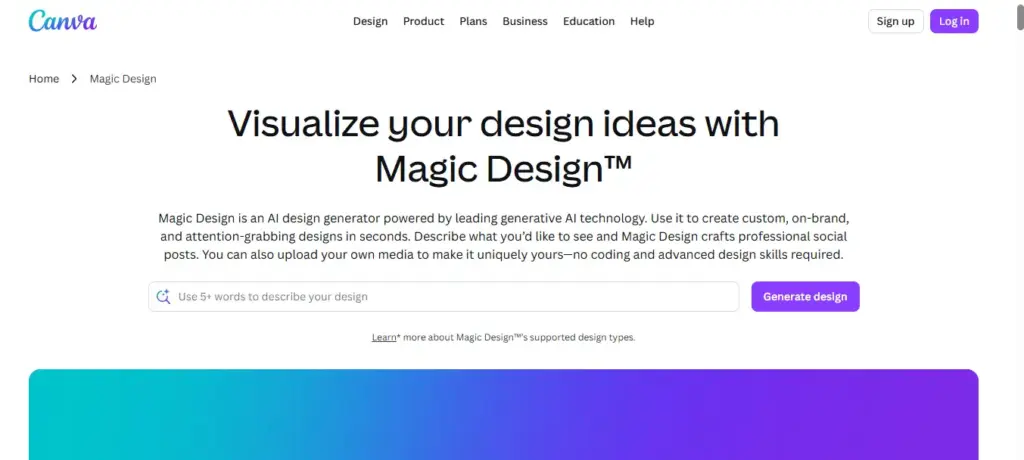
1) Canva Magic Design
Canva beginners के लिए सबसे आसान option है. इसमें templates बहुत अच्छे मिलते हैं और drag-and-drop editing simple होती है.
Best for:
- Students
- Social media presenters
- Quick business slides
2) Gamma
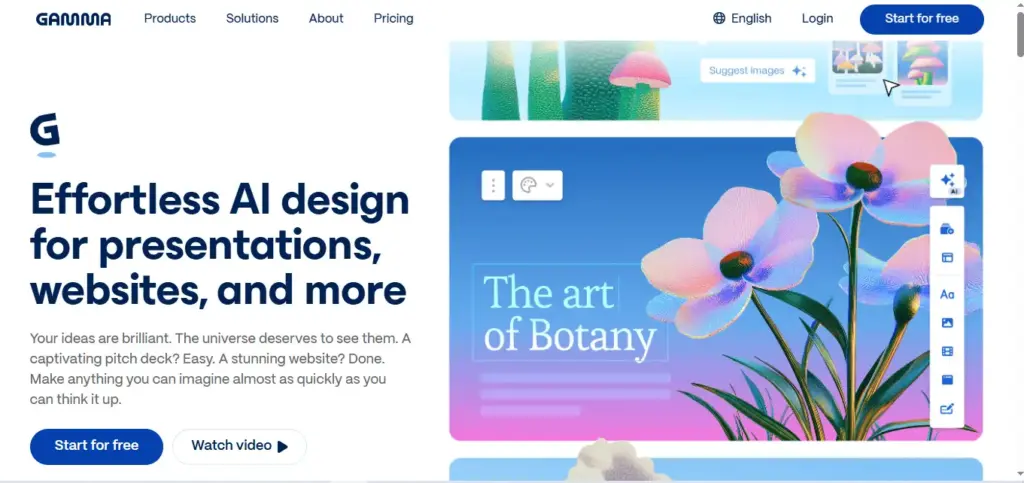
Gamma fast AI presentation creation के लिए काफी popular है. यह text से slides बनाता है और modern layout देता है.
Best for:
- Startup pitch decks
- Fast content generation
- Clean modern presentations
3) Microsoft Copilot in PowerPoint
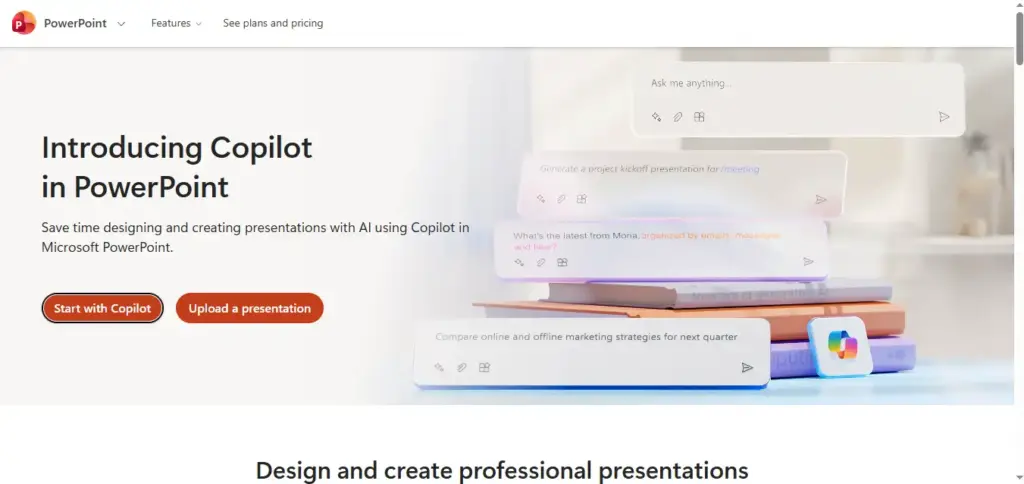
अगर आप already PowerPoint use करते हैं, तो Copilot बहुत helpful हो सकता है. यह existing files और prompts से slides तैयार करने में मदद करता है.
Best for:
- Office work
- Corporate presentations
- PowerPoint users
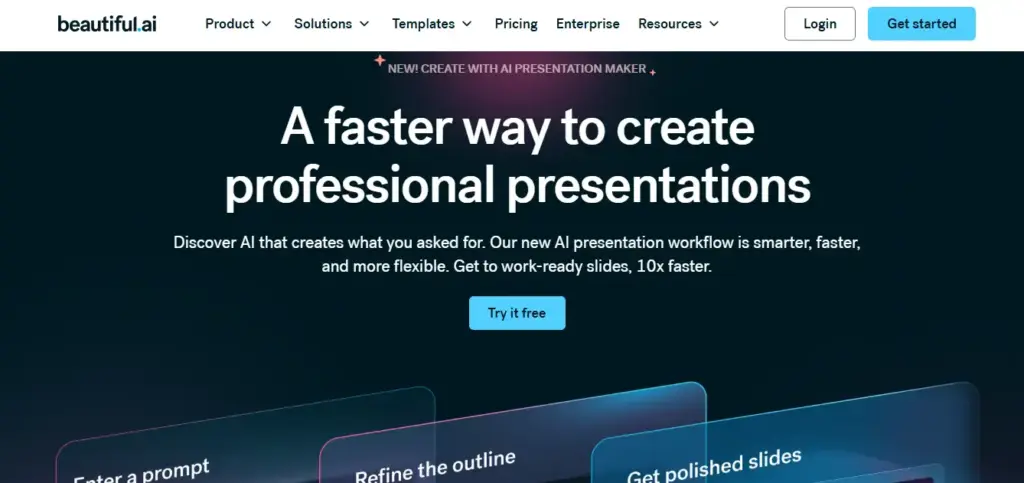
4) Beautiful.ai
यह tool design को smart तरीके से manage करता है. इसका focus clean, business-style slides पर होता है.
Best for:
- Professional deck
- Team meetings
- Minimal presentation style
5) Tome
Tome storytelling style presentations के लिए जाना जाता है. इसमें content flow अच्छा रहता है.
Best for:
- Narrative presentations
- Product stories
- Creative decks
Step-by-Step Example: AI Se PPT Kaise Banaye in Real Life
मान लीजिए आपको topic मिला: “AI Tools for Students”
ऐसे काम करें:
- Tool open करें, जैसे Canva या Gamma
- Prompt डालें:
“Create a 7-slide presentation on AI tools for students in easy Hindi-English, with intro, use cases, benefits, examples, and conclusion.” - AI slides generate करेगा
- हर slide का text check करें
- जरूरत हो तो examples add करें
- color theme simple और modern रखें
- final PPT export कर दें
Sample slide structure:
- Title slide
- What is AI for students?
- Top AI tools
- Benefits
- Real-life examples
- Common mistakes
- Conclusion
इस तरह आप बिना ज्यादा design skill के भी neat PPT बना सकते हैं.
AI Se PPT Banate Time Kya Dhyan Rakhein
AI मदद करता है, लेकिन quality आपकी checking से बनती है. अगर आप चाहें कि presentation strong लगे, तो इन बातों पर ध्यान दें.
Content short aur sharp rakho
हर slide में बहुत ज्यादा text मत डालो. 3–5 bullets enough होते हैं.
One slide = one idea
एक slide में एक ही main point रखें. इससे audience confuse नहीं होगी.
Visuals use karo
Charts, icons, screenshots और simple graphics presentation को interesting बनाते हैं.
Story flow maintain karo
Slides ऐसे arrange करें कि शुरुआत, middle और end logically connect हों.
Real examples add karo
Example से बात जल्दी समझ आती है. खासकर students और beginners के लिए.
Pro Tips: AI Se PPT Kaise Banaye Better Way Me
अगर आप simple PPT से आगे बढ़कर impressive presentation बनाना चाहते हैं, तो ये pro tips follow करें.
- Prompt में audience जरूर लिखें
“For students”, “for business meeting”, “for school project” जैसे words डालें. - Tone specify करें
Professional, friendly, simple, or persuasive tone mention करें. - Slide count fix करें
5, 7, 10, या 12 slides का exact number बताएं. - Design style mention करें
Modern, minimal, colorful, corporate, or academic style लिखें. - Final content को खुद human touch दें
AI output को direct use करने के बजाय थोड़ा personalize करें.
Common Mistakes: AI Se PPT Kaise Banaye Me Kya Nahi Karna
बहुत लोग AI से PPT बनाते समय ये गलतियाँ करते हैं.
1) Too much text
एक slide में पूरा paragraph डाल देना सबसे common mistake है.
2) Weak prompt
Agar prompt vague होगा, output भी weak आएगा.
3) Fact check न करना
AI कभी-कभी outdated या wrong info दे सकता है.
4) Same design everywhere
हर slide का look same होने से presentation boring लगती है.
5) Export करने से पहले review न करना
Spelling, alignment और spacing mistakes बाद में embarrassing बन सकती हैं.
Useful Tools / Resources
AI se PPT kaise banaye process को आसान बनाने के लिए ये tools useful हैं:
- Canva
- Gamma
- Microsoft PowerPoint
- Copilot
- Beautiful.ai
- Tome
- Google Slides
- Unsplash for images
- Flaticon for icons
- Grammarly for checking text
Mini comparison table
| Tool | Best For | Skill Level |
|---|---|---|
| Canva | Easy design | Beginner |
| Gamma | Fast AI slides | Beginner to intermediate |
| PowerPoint Copilot | Office work | Intermediate |
| Beautiful.ai | Professional decks | Intermediate |
| Tome | Story presentations | Beginner |
FAQ: AI Se PPT Kaise Banaye
1) AI se PPT kaise banaye fast way mein?
Topic डालो, prompt लिखो, template चुनो, AI-generated slides review करो और final edit करके export कर दो. यह सबसे fast तरीका है.
2) Kya AI se PPT free me ban sakti hai?
हाँ, कुछ tools free plan देते हैं. लेकिन advanced templates और export options के लिए paid version भी हो सकता है.
3) AI se PPT kaise banaye without design skills?
Canva, Gamma और similar tools use करें. ये drag-and-drop और auto-layout features देते हैं, इसलिए design skill कम होने पर भी काम हो जाता है.
4) AI se PPT kaise banaye jo professional lage?
Simple colors, short text, clean fonts, good icons और proper spacing use करें. साथ में content को खुद review जरूर करें.
5) Kya AI se banayi PPT client presentation ke liye use kar sakte hain?
हाँ, लेकिन final version को manually polish करना जरूरी है. Brand tone, facts और design consistency check करें.
निष्कर्ष
अब आप समझ गए होंगे कि AI se PPT kaise banaye और इसे smart तरीके से use करके professional presentation कैसे तैयार करें. सही prompt, सही tool और थोड़ा human editing मिलाकर आप बहुत कम समय में impressive PPT बना सकते हैं.
अगर आप चाहें कि आपकी प्रस्तुति clean, fast और effective लगे, तो AI tools को assistant की तरह use करें, replacement की तरह नहीं.
अगर यह guide useful लगी हो, तो comment करके बताइए. इसे share करें और ऐसे ही practical Hindi SEO content के लिए subscribe/follow जरूर करें.